Ever had one of those moments when your Wi-Fi suddenly feels like it’s running on expired batteries? The movie won’t load, your video call is freezing, and websites act like they need a pep talk just to open. You restart your laptop, move closer to the router, and even stare at the modem hoping it will magically fix itself; yet nothing changes.
Before you panic or call your internet provider, there’s one simple but powerful trick that solves more Wi-Fi problems than anything else: reset your router and modem properly.
But most people don’t do it the right way.
In this guide, you’ll learn how to reset a router and how to reset a modem correctly and safely, without losing your settings or making things worse. These steps can also significantly improve slow, lagging, or unstable internet.
Why Resetting Works (and Why It’s So Powerful)
Think of your router and modem as small computers. They have processors, memory, and internal software that runs all the time. Over time, they can get overloaded. Too many connected devices, temporary glitches, IP conflicts, and background processes add up.
A proper reset:
- clears the system memory
- wipes temporary bugs
- refreshes your network connection
- reduces overheating
- boosts overall Wi-Fi stability
It’s like giving your network a fresh start without messing with your saved settings.
Router vs. Modem – Know the Difference Before Resetting
Many people mix up the two, but each device plays a different role in your internet connection:
Modem
- Connects to your ISP
- Brings internet into your home
- Think of it as the “gateway”
Router
- Spreads Wi-Fi throughout your home
- Manages connected devices
- Provides security and network distribution
Resetting both ensures your entire network is refreshed from the source all the way to the Wi-Fi signal.
How to Reset a Router Properly (The Safe Way)
Most people simply press the reset button on the back. Don’t! That button triggers a factory reset, which is not what you want unless you plan to reconfigure everything from scratch.
Here’s the correct way to refresh your router:
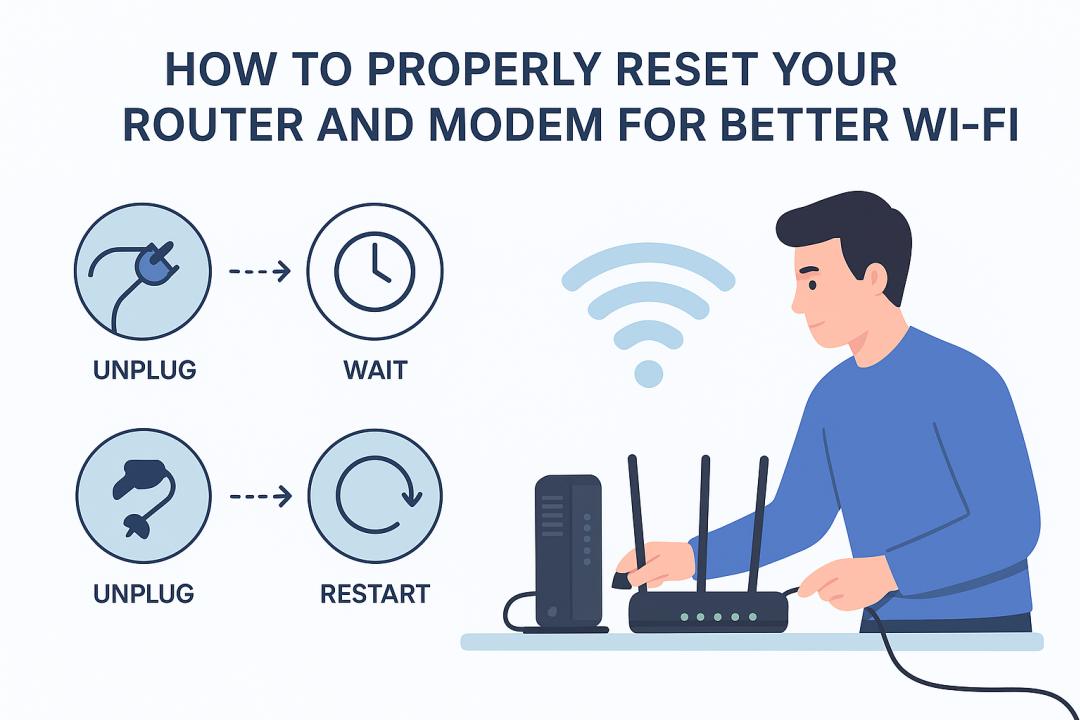
Step 1: Unplug the router
Instead, pull the plug directly from the power outlet. This halts all processes instantly and lets the device cool down.
Why it matters:
Routers often overheat, causing slow speeds and random disconnects.
Step 2: Wait at least 30 seconds
This step is crucial. Your router has small capacitors that hold residual power. Waiting allows the memory to clear completely. Think of this step as giving your router a “deep clean.”
Step 3: Plug it back in
After 30 seconds, reconnect the router to power. Give it 1 to 2 minutes to reboot fully. The lights will blink, settle, and the Wi-Fi signal will return.
That’s it, You’ve now correctly reset your router.
This alone solves:
- random disconnections
- slow Wi-Fi
- weak signals
- inconsistent speeds
- device-connection errors
How to Reset a Modem Correctly
Resetting your modem is slightly different from resetting a router. Since the modem connects to your ISP, the restart process requires proper timing. Here’s how to reset a modem correctly:
Step 1: Unplug the modem’s power
Like the router, unplug it from the outlet. Some modems also have a backup battery, which is common with cable modems. If yours does, remove the battery for the reset to work.
Step 2: Wait 1 full minute
This allows:
- network caches to reset
- the modem’s processor to cool
- signal channels to refresh
- stale IP or connection data to clear
A modem needs slightly longer than a router to fully discharge.
Step 3: Plug the modem back in and wait for full connection
The modem will go through various lights—power, downstream, upstream, online. Wait until all relevant lights turn solid. This may take 2 to 5 minutes, depending on your ISP.
Important: Reset the modem before the router
This is one of the biggest mistakes people make. The modem must come online first so the router can pull a fresh IP and create a stable Wi-Fi connection. Turning them on in the wrong order causes intermittent issues.
Resetting Both Devices Together – The Correct Order
To get the strongest, cleanest Wi-Fi connection, reset both devices with this exact sequence:
- Turn off and unplug the modem
- Turn off and unplug the router
- Wait 1 minute
- Plug in the modem first
- Wait for all modem lights to stabilize
- Plug in the router
- Wait 2–3 minutes for full Wi-Fi sync
This resets your network from the ground up and ensures a fresh, optimized connection.
Signs It’s Time for a Reset
You should reset your router and modem when you notice:
- Slower internet even with strong Wi-Fi bars
- Smart TVs or apps buffering constantly
- Download speeds dropping randomly
- Devices disconnecting from Wi-Fi
- “No internet connection” errors
- Router feeling hot to the touch
- Lag during zoom calls or online games
If you’re experiencing any of these even occasionally a reset can help instantly.
How Often Should You Reset Them?
For most homes, resetting your router and modem once every 1–2 weeks keeps your Wi-Fi fresh and efficient.
If you have:
- many connected devices
- smart home systems
- heavy streaming
- online gaming
- large households
…resetting weekly is ideal.
Some users even use smart plugs to schedule automatic resets.
Avoid This! (Common Reset Mistakes)
To make sure your network stays safe and stable, avoid these errors:
Using the “Reset” button
This wipes your login, password, SSID, and settings—only for emergencies.
Not waiting long enough
If you don’t wait at least 30–60 seconds, the memory doesn’t clear.
Resetting only the router
Your modem may be the real culprit.
Turning devices back on in the wrong order
Modem first, router second always.
Resetting too often
Daily resets are unnecessary and could shorten device lifespan.
When Resetting Isn’t Enough
If you still have issues after resetting, the problem might be:
- outdated router
- low-speed plan
- ISP outages
- Wi-Fi congestion
- poor router placement
- interference from walls, microwaves, or Bluetooth devices
But resetting is still the first and often most effective fix for everyday Wi-Fi problems.
Conclusion
Knowing how to reset a router and how to reset a modem properly can quickly solve slow speeds, random disconnects, and Wi-Fi dead zones. Most users skip steps or restart devices incorrectly, which is why their problems persist.
With the right restart order and timing, your Wi-Fi can become more stable, faster, and more reliable without needing new hardware or Internet Services Provider (ISP) support. Resetting is simple, effective, and one of the easiest ways to improve your home internet performance.
FAQs About Reset a Router & Modem
1. Does resetting my router delete Wi-Fi passwords?
No. A power reset keeps all your settings. Only the back “Reset” pinhole button erases Wi-Fi passwords.
2. How long should I wait before plugging devices back in?
Router: 30 seconds. Modem: 60 seconds. This ensures all memory clears completely.
3. How often should I reset my router and modem?
Once every 1 to 2 weeks is ideal for keeping strong, stable Wi-Fi.
4. Why does resetting improve slow Wi-Fi?
It clears temporary bugs, refreshes your IP, reduces overheating, and resets overloaded processes.
5. What if my Wi-Fi is still slow after resetting?
Check for ISP issues, interference, outdated equipment, or low-speed plans; these often cause ongoing problems.