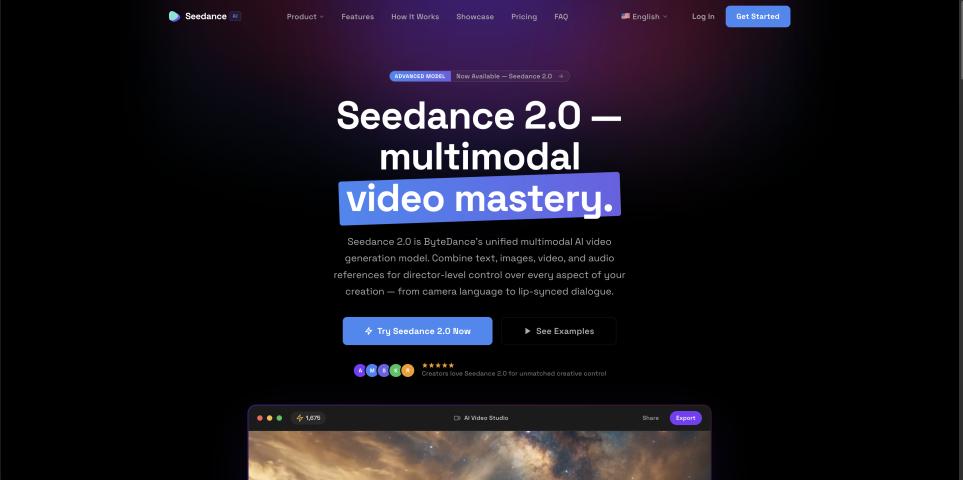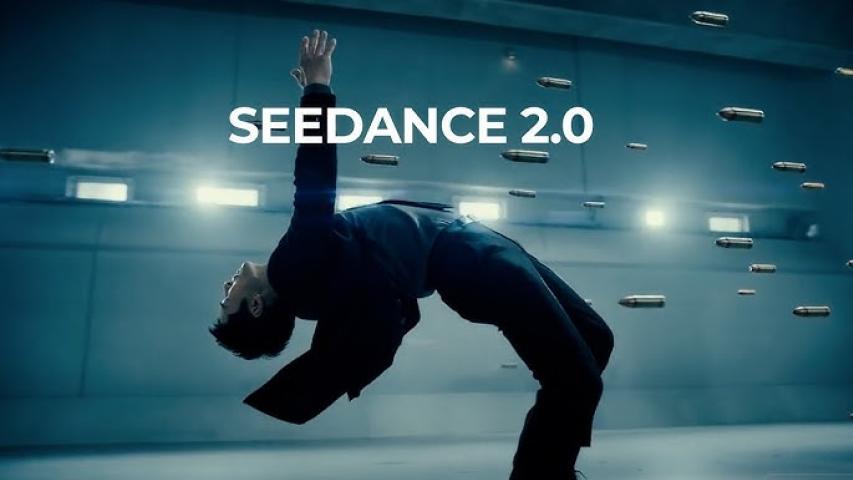
Hey there, if you're diving into the world of AI video tools, Seedance 2.0 on Videoweb AI is a game-changer. It's not just another generator—it's built for folks like marketers, educators, and creatives who want to whip up polished videos without the hassle of traditional editing software. Think of it as your smart sidekick that takes images, clips, audio, and text, then blends them into something seamless and expressive. I've spent some time playing around with it on the VideoWeb AI platform, and trust me, once you get the hang of it, you'll wonder how you ever managed without it. In this guide, I'll walk you through how to use Seedance 2.0 step by step, share some insider tips on tweaking parameters, and throw in a few real-life examples to spark your ideas. Let's make your video projects shine.
Why Seedance 2.0 Feels Like a Breath of Fresh Air in Video Generation
Picture this: You're staring at a blank screen, trying to create a quick promo or an explainer clip, but editing takes forever. Seedance 2.0 flips the script by letting you feed it references—like a photo for >
Compared to older models or basic tools, this 2.0 version nails multimodal inputs, meaning it handles everything from dance sequences to storytelling with ease. And the best part? It's free on VideoWeb AI, so no barriers to entry. If you're in marketing, teaching, or just experimenting with digital art, this could cut your production time in half while upping the wow factor.
Step-by-Step: How to Use Seedance 2.0 Without the Headaches
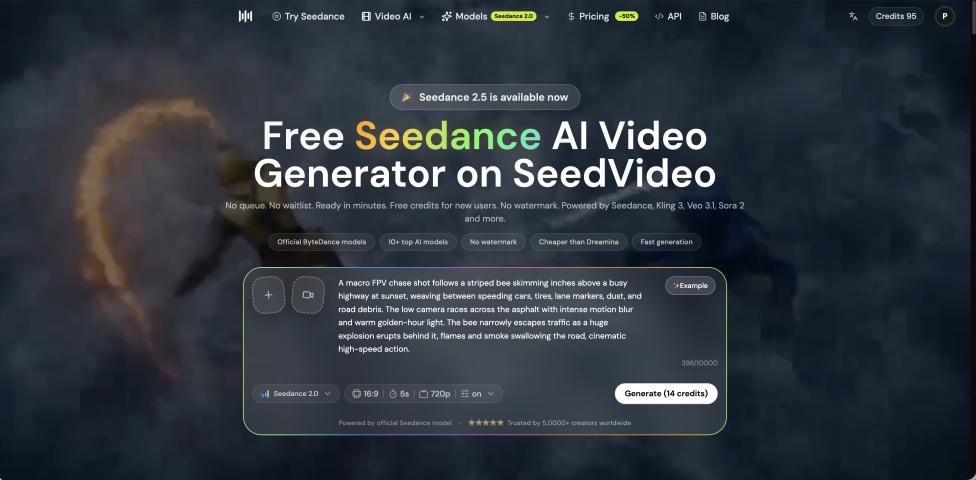
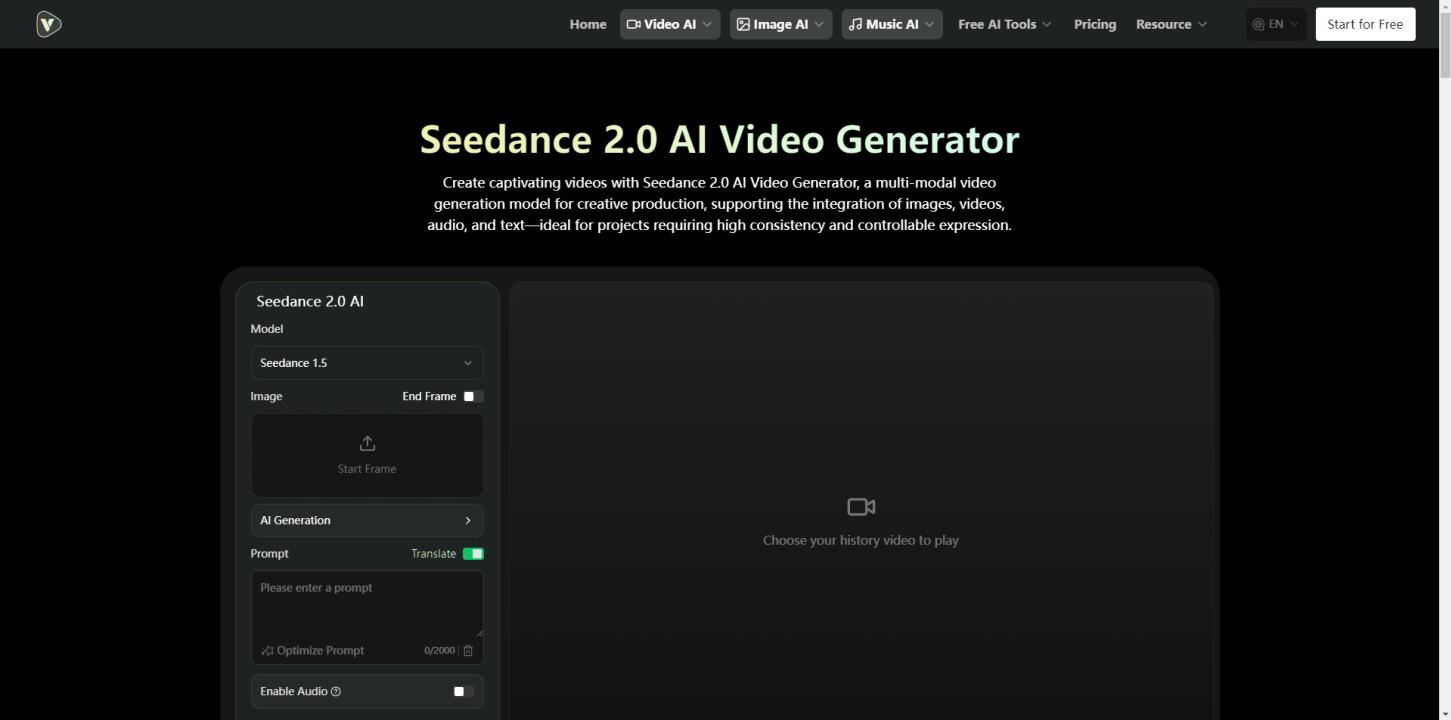
Alright, let's get practical. The platform is super user-friendly—browser-based, no downloads needed. Here's how I approach it every time:
- Jump In: Head over to the VideoWeb AI site and find the Seedance 2.0 page. Log in if you want to save your history, but it's not mandatory.
- Load Up Your Stuff: This is where the magic starts. Upload images for visuals, short videos for motions (like a dance move you want to mimic), audio tracks for sound, or skip uploads and go text-only. Pro tip: Stick to high-res files to avoid funky artifacts in the output.
- Write Your Prompt: Keep it conversational but detailed. Something like, "Make a 5-second clip of a hip-hop dancer in a city street, using my uploaded video for the moves, the photo as the backdrop, and sync it to this upbeat track." The more specific you are, the better it listens.
- Tweak the Settings: Dial in basics like video length (start with 5 seconds to test), resolution (go higher for crispness), and aspect ratio (16:9 for wide screens or 9:16 for mobile). Turn on audio if you want the AI to compose something fitting.
- Hit Generate: Boom—watch it work. You can crank out up to 50 variations at once, which is awesome for picking the best one.
- Polish It Up: Check the result in the viewer. Not quite right? Extend the clip or edit a section locally. Download, share, or iterate with a refined prompt.
- Rinse and Repeat: If it's off, tweak your inputs and go again. The reference system makes fixes quick, so you're not wasting time.
It's that straightforward, but the real fun comes from experimenting. I've found that starting small helps you build confidence fast.
Dialing In the Details: Seedance 2.0 Parameters Explained
Parameters might sound techy, but they're your levers for control. Here's what I've learned works best:
- Resolution: Default is 480p, but bump it to 720p or higher if your project needs that extra sharpness. Just know it might take a bit longer.
- Duration: 5 seconds is the sweet spot for quick tests, but you can stretch it for longer narratives. Keep it under 20 seconds initially to avoid overwhelming the model.
- Aspect Ratio: Match your platform—widescreen for YouTube, vertical for Instagram Reels. It keeps things looking pro.
- Generation Count: Why settle for one? Crank it to 50 and sift through options. Saves you from regenerating everything.
- Model Switch: Stick with 2.0 for the latest features, but 1.5 is there if you need backward compatibility.
- Audio Toggle: Flip this on for auto-generated sound that matches your visuals. It's surprisingly good at syncing beats to actions.
The platform doesn't expose every knob like "guidance scale," but you can influence them through prompts—add "ultra-detailed" for more polish, for example. Play around; it's forgiving.
Real-Life Wins: Seedance 2.0 Use Cases That'll Inspire You
Nothing beats seeing it in action. Here are a few scenarios I've either tried or seen others pull off:
- Marketing Magic for a Small Biz: Imagine you're launching a gadget. Upload a product shot, a quick demo clip, and some energetic music. Prompt: "Build a 10-second teaser showing the gadget in everyday use, keeping the colors from my image and flowing with the tune." What you get? A slick ad that looks custom-made, perfect for social feeds. One friend used this and slashed their video budget—talk about a win.
- Classroom Boosters for Teachers: Need to explain something tricky like the water cycle? Toss in diagrams as images, a simple text description, and soft background audio. Prompt: "Animate a 15-second breakdown of the water cycle, using my sketches for the visuals and adding gentle animations." Boom—an engaging mini-lesson that kids actually watch. I've heard from educators that this ramps up engagement big time.
- Artistic Flair for Storytellers: If you're into short films or dance vids, upload character drawings, a reference dance clip, and moody sound. Prompt: "Craft a 20-second futuristic dance scene, locking in the character from my sketches and matching steps to the audio." The result? Something emotive and fluid that could go viral on TikTok or enter a festival. It's empowered hobbyists to create pro-level stuff without a crew.
These aren't hypotheticals—they show how versatile it is, from quick hits to deeper projects.
Pro Tips to Level Up Your Seedance 2.0 Game
To avoid frustration and get killer results:
- Quality Inputs Matter: Garbage in, garbage out. Use clear, relevant references—maybe 2-3 max to keep it focused.
- Prompt Like a Pro: Be vivid but not rambling. Phrases like "ensure smooth transitions" or "keep the mood upbeat" guide it without overcomplicating.
- Mix and Match Inputs: Don't rely on just text; layering multimodal stuff (image + video + audio) yields the richest videos.
- Sidestep Pitfalls: If sync is off, explicitly say "perfect audio-visual match" in your prompt. And always preview before finalizing.
- Go Advanced: For tweaks, select parts and prompt changes like "speed up this sequence." Use your history to build on past gens—it's a time-saver.
Stick to these, and you'll be cranking out content like a seasoned editor.
Wrapping It Up: Time to Create with Seedance 2.0
Seedance 2.0 isn't just a tool—it's a creative accelerator that puts professional video making in your hands. Whether you're brainstorming for work or just having fun, this guide should get you rolling. Head to VideoWeb AI, give it a spin, and see what you come up with. Got questions? Experiment and iterate—that's the beauty of it. Happy creating!