Summary
Microsoft Office 365 now Microsoft 365 is widely used by individuals and businesses to manage emails, attachments, contacts and other information in the mailbox. However, users may need to save emails to their local computer, create a backup, migrate mailbox data, or convert emails into another format for future access. Selecting the appropriate method can make this process easier and help you keep an organized record of important email information.
In this guide, we will learn about the different methods to backup and convert Office 365 emails, the common challenges users might face, and how Office 365 Backup Software can make the process easier.
Why Migrate Office 365 Emails?
There are a few reasons why it can be useful to convert Office 365 emails. Microsoft 365 gives you access to email in the cloud, but you might want to keep a local copy of important messages.
The common reasons are:
- Email Backup: save important emails on your computer locally as a backup.
- Email Migration – Plan mailbox data for migration to another email platform.
- Offline Access: Access exported messages without having to rely solely on the online mailbox.
- Organize Data: Store emails in organized folders for easier management.
- Long-Term Archiving: Archive business correspondence that is important for future reference.
- Format compatibility: Export messages to a format supported by a different application.
- The right way depends on the output format you want, the size of the mailbox and what you want to do with the exported emails.
Simple Methods to Convert Office 365 Emails
There are various methods to save and convert Office 365 emails. Every method has its own advantages and limitations.
Method 1: How to Export Emails from Microsoft Outlook
Export mailbox data to a PST file Microsoft Outlook provides options for exporting mailbox data to a PST file. This approach could be helpful when users want to preserve emails and supported mailbox items in a form that Outlook can open.
How to Export Office 365 Emails with Outlook:
- Launch Microsoft Outlook on your PC.
- Sign in to the Microsoft 365 account that contains the emails.
- Let the mailbox sync, especially if you want old messages.
- On the File menu, choose Import and Export (if that option is available in your version of Outlook).
- Choose the export data to a file option.
- Select Outlook Data File (.pst).
- Select the mailbox or folders you wish to export.
- Pick a destination and finish the export.
Benefits Include:
- Uses a feature built into Outlook.
- Great for PST backups.
- Lets the user choose specific folders.
Limitations
- The options you see depend on your version of Outlook and your account configuration.
- Emails availability for export is based on synchronization settings.
- The export to PST doesn’t create all other email file formats directly.
Method 2: Using Office 365 Backup Software
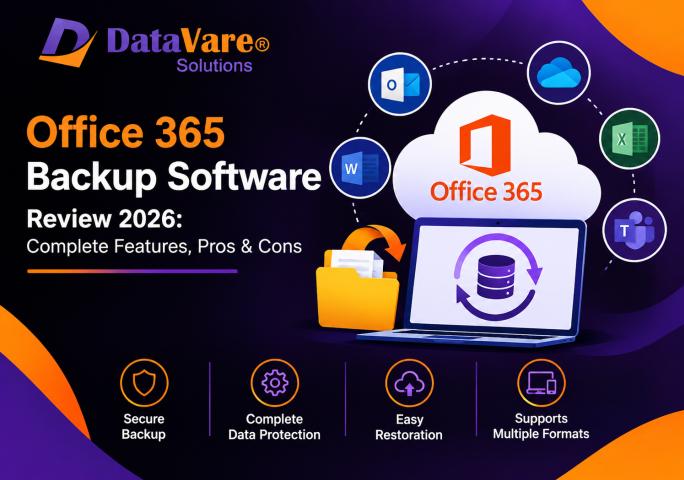
DataVare Office 365 Backup Software is a good option for users who want to set up a dedicated backup and export workflow. The tool is intended to help users back up Office 365 mailbox data and export it for local storage or further use.
The The software includes a modern graphical interface, advanced preview, automatic folder structure and support for 19 languages to make it easier to select and backup mailboxes.
Step-by-step process:
Download the software : Go to the official Office 365 Backup page and download the application.
Installation and startup Follow the installation instructions and start the software.
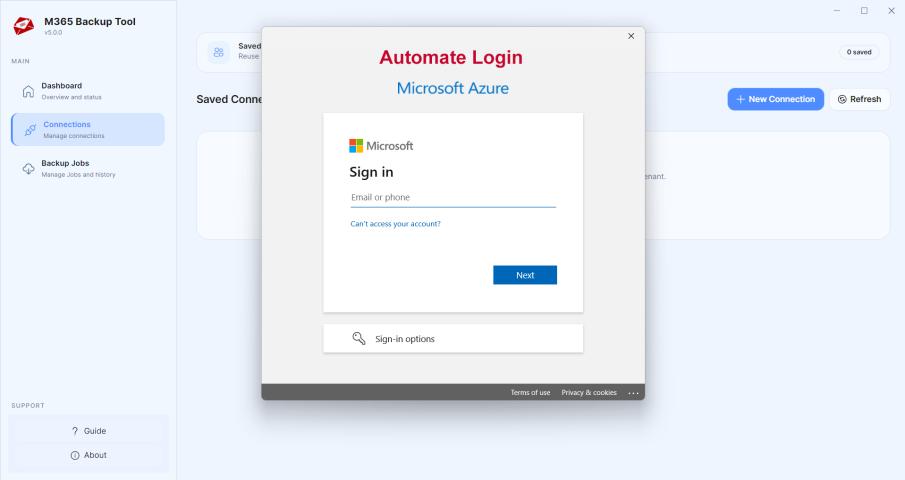
Link to your Microsoft 365 account: Enter your account credentials and answer any authentication or permission prompts.
Download mailbox data: Let the software download the available mailbox data.
Preview emails: See the data that's available before you start the export.
Choose the required folders: Select the mailbox folders or emails you want to back up, depending on the selection options available.
Export setup: The new book by the Nobel laureate is a sweeping epic of love and loss, of ambition and its consequences, and of the enduring power of the human spirit.
Start Backup: Start the process and wait for the software to complete.
Verify the output: Verify that the exported files and folder structure contain the necessary data.
Note: The supported output formats, authentication options, and exact screens may differ depending on the software version and configuration. See the product documentation for the current procedure.
Key Features of Office 365 Backup Software
When considering an Office 365 backup tool, look at how the features make exporting simple.
1. Graphical User Interface (GUI)
A modern GUI can simplify navigating the application, setting options, and managing the backup workflow. Especially for users who don’t work with email migration tools on a regular basis, a clean interface is very helpful.
2. Preview Advanced
Preview The preview feature allows users to preview available mailbox information prior to export. This can help them find the right emails and folders, and can also reduce the chances of choosing the wrong data.
3. Auto Folder Structure
Keeping the original folder structure makes it easier to handle exported emails. It might be easier to find messages after backup with automatic folder structure support.
4. 19 Languages Support
It has multilingual support which makes the interface more accessible to users who prefer to work in a language other than English.
5. Backup Workflow, dedicated
A dedicated backup application offers a guided process to connect to an account, choose mailbox data, configure export settings, and save an output.
Office 365 Email Migration - Common Problems and Solutions
Another problem is that even when users follow the right procedure, there can be problems when backing up or exporting.
Problem 1: Unable to sign in to my Microsoft 365 account
Possible fix: Make sure you have a good internet connection, double-check your account information, and complete any necessary authentication. Organizational security policies or administrator permissions may also restrict access.
Problem 2: Backup has no email
Possible solution: Ensure the mailbox was fully synced and the selected folders contain the required messages. Check date filters and other export settings, if any.
Problem 3: Backing up is taking too long
Possible solution: Large mailboxes and attachments may slow processing. Make sure you have enough space on your local storage, check your internet connection and don't download other things at the same time.
Problem 4: Exported folders are not sorted as expected
Possible solution: Review your selected folder options to see if the output format you have selected supports the folder arrangement you want. If available, enable automatic folder structure options.
Problem 5: Cannot open exported files
Possible Fix: Ensure that the output format is compatible with your application. PST files generally require a compatible Outlook environment or another program that can support PST data.
Office 365 Email Backup Best Practices
To improve the reliability of the backup process, it is recommended you:
- Before exporting a large mailbox, check the available storage space.
- If you have a selective export option, only select the folders you need.
- Secure destination for sensitive business correspondence.
- Protect backup files against unauthorized access.
- Check the exported data before you rely on it as your only backup.
- Keep an extra copy of important backup files in a different secure location.
- Before you export business data, review your business data retention policies and Microsoft 365 permissions.
It is important to understand that an email export is not a complete backup of all Microsoft 365 services. If you need to back up OneDrive, SharePoint, Teams, calendars or other services, check to see if the backup solution you choose supports those data types.
Conclusion
Users can convert Office 365 emails to make local copies, sort important correspondence, and prepare mailbox data for migration or archiving. Microsoft Outlook is a practical option for those who primarily require PST exports. However, a dedicated tool might be more convenient for users who require a guided backup and export workflow.
Office 365 Backup Software Features Modern GUI, Advance Preview, Auto Folder Structure, Supports 19 Languages. Before choosing a solution, check the supported export formats, account requirements and features to make sure it is the right one for you.
For more information on the product, please visit the official page:
Office 365 Backup Software https://www.datavare.com/software/office-365-backup-expert.html Frequently Questions Raised
Q1. How to migrate Office 365 emails in easiest way?
The simplest way will depend on the format of output you require. While Outlook’s export feature can work well for PST files, other supported export needs may benefit from dedicated backup software that can provide a more guided process.
Q2. Can I save Office 365 email to my computer?
Yes. You can save supported mailbox data locally by using the compatible export function in Outlook or a dedicated backup solution.
Q3. Some Office 365 emails are missing after export. Why?
This may be due to incomplete synchronization, wrong folder selection, date filters or restrictions on account access. Kindly check these settings and confirm the exported data.
Q4. Is Office 365 Backup Software good for beginners?
It has a modern graphical interface and a preview feature that is intended to make the workflow easier to navigate. Users should read the setup instructions and check the supported features before initiating a backup.
More Info:- https://www.datavare.com/software/office-365-backup-expert.html