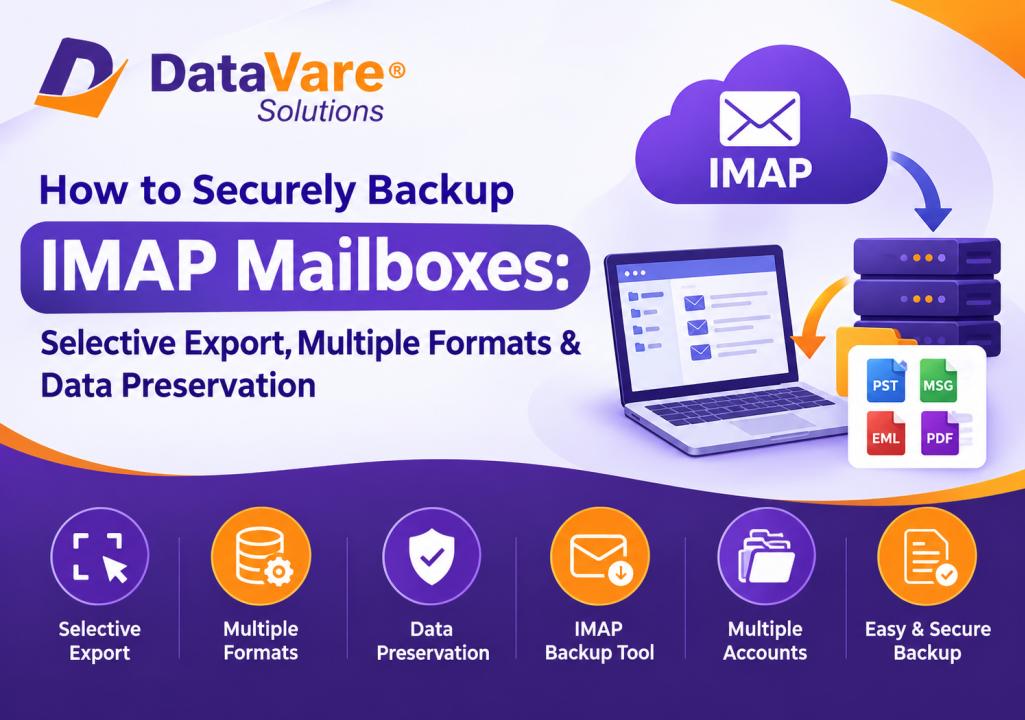

Summary
IMAP email backup is an important way of keeping a local copy of important mailbox data and making it available when needed. If you use Gmail, Office 365, G Suite, AOL or any other IMAP based service, then a dedicated backup solution can make the process of downloading emails to your computer much easier.
IMAP Backup Software offers options to download emails from IMAP servers, select particular folders, process multiple accounts and save mailbox data in several formats. It supports PST, MSG, EML, EMLX, MBOX, HTML, PDF and MHTML file formats. Keeps mailbox hierarchy, metadata and email properties intact during backup. Datavare,
Here’s a simple step-by-step guide on how to safely back up an IMAP mailbox.
Why Backup IMAP Mailboxes?
IMAP accounts typically keep email data on the mail server, which makes it convenient to access from different devices. But having a local copy can be useful for archiving, migration, offline access and additional data protection
The DataVare IMAP Backup Software solution allows users to download the mailbox data to their local computer without changing the attributes of email or the mailbox structure. It also supports selected folders so that users don’t have to necessarily process the whole mailbox. Datavare Prominent Features of Datavare IMAP Backup Software
Before starting the backup, let’s review some useful features:
- Export Selected Folders: Select IMAP folders you want to export or export all folders.
- Batch Backup: Process IMAP Mailbox data in batch.
- Various Export Formats: Export emails in PST, MSG, EML, EMLX, MBOX, HTML, PDF, or MHTML format.
- Attachment Support: Attachments can be embedded with exported messages.
- Multiple IMAP Accounts Backup emails of multiple IMAP accounts.
- Data Preservation: Mailbox hierarchy, metadata, and email properties are kept
- Easy Interface: The software is made for both technical and non-technical users.
Datavare IMAP Mailbox Backup: A Step-by-Step Guide
Step 1: Download & Launch Software
First, Download and install IMAP Backup Software in your computer. Open the application and start backup process.
The product page states that the software is available for Windows and Mac. Datavare
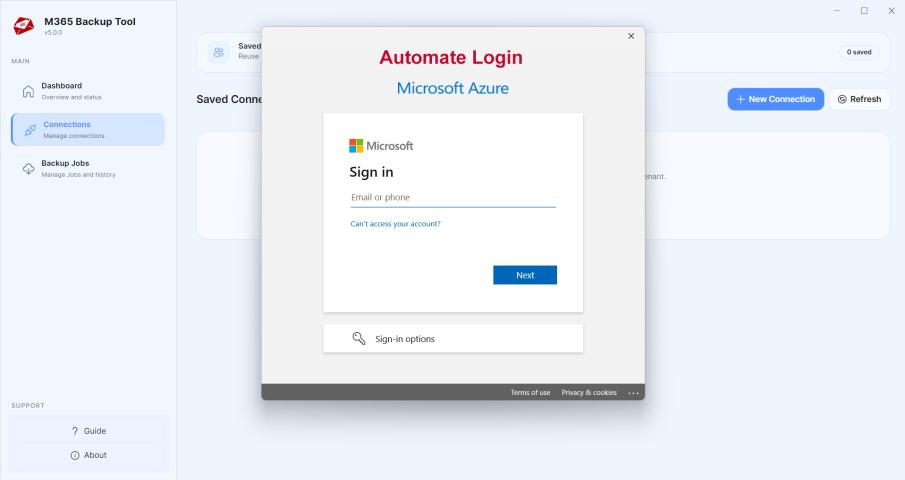
Step 2: Enter IMAP Server Login Credentials
When you start the application you will need to enter the required IMAP account information, such as:
- IMAP server address
User name
- Passphrase
The credentials are then used by the software to connect to the IMAP server you selected and pull the mailbox data. Datavare (DTV)
Step 3: Choose the Mailbox Folders You Need
Once the IMAP account is connected, choose the folders that you want to back up.
For example you could choose:
-Inbox
- Sent Mail
- Writing
- Garbage
- Personalized folders
You can select individual folders if you only need particular mailbox data, or choose all folders for a comprehensive backup.
Step 4: Select export format
Choose the format you want to save your IMAP emails in now.
The choices are:
- Pacific Standard Time
- MSG
- EMLX
- .mbox
<p>HTML
- MHTML
Select the format based on your future requirement. For example, PST can be useful for Outlook related workflows whereas MBOX can be good for Thunderbird related use.
Step 5: Select Destination Location
Choose Browse and select a location on your computer where you want to save the backed up mailbox data.
It is recommended to choose a place with sufficient free storage, especially if the mailbox is large with many emails and attachments.
Step 6: Launch IMAP Backup
Then choose the folders, output format and destination path and click the start button to begin the backup process.
The software downloads the selected IMAP emails into the selected local destination. The backup preserves mailbox hierarchy, metadata and email properties, according to the product page. Datavare Step 7: Confirm Backup Data
After the process is finished, navigate to the destination folder and check the exported files. Verify that essential folders, emails, attachments, and other vital mailbox data have been saved correctly.
If you have important business or personal data, a second copy in a different secure location could provide some extra protection.
How to Backup IMAP Emails into PST?
If you primarily want to save IMAP emails in Outlook PST format, the process is simple:
1. Open IMAP Backup Software.
2. Enter the IMAP server login information.
3. Choose the mailbox folder you need.
4. In the export options select PST.
5. Choose the destination location.
6. Click Backup Now to begin the export. Datavare
One advantage is that the product FAQ says that Outlook is not required to export IMAP emails to PST. Datavare
How to Backup IMAP Emails to MBOX?
Connect your IMAP account and select the folders you want to backup. Select MBOX as output format and set the destination location. Click on Start Backup to create an MBOX backup.
Also, the created MBOX data could be helpful for email workflows such as those used in Thunderbird.
Conclusion
Saving IMAP mailboxes locally is a useful way to keep important email data off the mail server. IMAP Backup Software facilitates the process with selective folder export, batch processing, multiple output formats, attachment support, and mailbox data preservation.
Users can follow the step-by-step process as mentioned above to connect their IMAP account, select the required mailbox data, select an appropriate export format, and create a local backup with minimum effort.
Frequently Asked Questions
1. How to backup an IMAP mailbox safely?
The IMAP Backup Software will help you to connect to your IMAP account, select the required folders, select output format, destination location and start the backup. The software keeps the mailbox hierarchy, metadata and the properties of emails.
2. Is there an option to backup only some IMAP email folders?
Yes, it has the facility to allow you to choose specific folders to backup instead of exporting the whole mailbox. You can also select all folders if you need full backup of an IMAP mailbox.
3. What are the supported formats for IMAP email backup?
The software facilitates the saving of mailbox data in multiple formats such as PST, MSG, EML, EMLX, MBOX, HTML, PDF, MHTML as per users’ requirements.
4. Will IMAP Backup Software save the attachments of emails?
Yes. The software enables you to export emails along with their attachments. It is designed to retain crucial email attributes and information while performing the backup operation. Datavare 5. Can I backup multiple IMAP accounts?
Yes. supports backup of emails from multiple IMAP server accounts. It can work with services like Gmail, G Suite, Office 365, AOL and other IMAP servers.